IPTV Smarters Pro - Installation Guide for All Devices
Complete guide to installing and configuring IPTV Smarters Pro on Android, iOS, Smart TV, Firestick, and Windows. Learn Xtream Codes setup, M3U playlists, and advanced features.
Legal Disclaimer:
This guide is for educational purposes only. IPTV Smarters Pro is a legal IPTV player. Always use it with licensed IPTV services that have proper broadcasting rights.
What is IPTV Smarters Pro?
IPTV Smarters Pro is one of the most popular cross-platform IPTV players available today. It works seamlessly on Android, iOS, Smart TVs, Firestick, and even web browsers, making it the perfect choice for users with multiple devices.
The app supports both Xtream Codes API and M3U playlists, offers parental controls, multi-screen viewing, EPG support, and a user-friendly interface that's easy to navigate for beginners while offering advanced features for power users.
Key Features of IPTV Smarters Pro
- Cross-platform support (Android, iOS, Smart TV, Firestick, Windows)
- Support for Xtream Codes API and M3U playlists
- Electronic Program Guide (EPG) with 7-day TV listings
- Video on Demand (VOD) library support
- Catch-up TV functionality
- Parental control with PIN protection
- Multi-screen viewing (watch on multiple devices)
- Favorites and channel sorting
- External player support (VLC, MX Player)
- Chromecast support
Install IPTV Smarters Pro on Android
Method 1: Google Play Store (Recommended)
Step 1: Open Google Play Store
- Open the Google Play Store app on your Android device
- Tap the search bar at the top
Step 2: Search for IPTV Smarters Pro
- Type "IPTV Smarters Pro" in the search field
- Select the official app from WHMCS SMARTERS
Step 3: Install the App
- Tap "Install" button
- Wait for the download and installation to complete
- Tap "Open" to launch the app
Method 2: APK Installation
Step 1: Enable Unknown Sources
- Go to Settings Security
- Enable "Unknown Sources" or "Install from Unknown Sources"
- Confirm the warning message
Step 2: Download APK
- Visit the official IPTV Smarters website
- Download the Android APK file
- Wait for download to complete
Step 3: Install APK
- Open your file manager
- Navigate to Downloads folder
- Tap on the IPTV Smarters Pro APK file
- Tap "Install"
- Wait for installation to finish
Install IPTV Smarters Pro on Firestick
Step 1: Enable Apps from Unknown Sources
- Go to Firestick Settings
- Select "My Fire TV" or "Device"
- Click "Developer Options"
- Turn ON "Apps from Unknown Sources"
- Confirm by selecting "Turn On"
Step 2: Install Downloader App
- From home screen, click search icon
- Type "Downloader"
- Select Downloader app from results
- Click "Download" to install
- Open Downloader once installed
Step 3: Download IPTV Smarters Pro
- In Downloader, click the URL field
- Enter the IPTV Smarters Pro download URL
- Click "Go"
- Wait for APK to download
Step 4: Install the App
- Click "Install" when prompted
- Wait for installation to complete
- Click "Done"
- Delete APK file to save space
Looking for a reliable IPTV provider? Top-rated services offer 12H and 24H free trials with instant activation, allowing you to start streaming immediately. It's an excellent way to test quality, channel selection, and performance before making a commitment. Visit our Best IPTV Providers page to find the perfect match for your needs.
Install IPTV Smarters Pro on iOS (iPhone/iPad)
Step 1: Open App Store
- Open the App Store on your iPhone or iPad
- Tap the search icon at the bottom
Step 2: Search and Install
- Type "IPTV Smarters Pro" in search
- Select the official app
- Tap "Get" or the cloud download icon
- Authenticate with Face ID, Touch ID, or password
- Wait for installation
- Tap "Open" to launch
Install IPTV Smarters Pro on Smart TV
For Android TV:
- Open Google Play Store on your Smart TV
- Search for "IPTV Smarters Pro"
- Select the app and click "Install"
- Wait for installation
- Open from your apps list
For Samsung/LG Smart TV:
- IPTV Smarters Pro may not be available directly
- Use screen mirroring from your phone
- Or use an Android TV box connected to your TV
Setup IPTV Smarters Pro with Xtream Codes
Step 1: Launch the App
- Open IPTV Smarters Pro
- On first launch, you'll see login options
- Select "Login with Xtream Codes API"
Step 2: Enter Your Credentials
- Username: Enter your Xtream Codes username
- Password: Enter your Xtream Codes password
- Server URL: Enter the server address (without http://)
- Example: server.example.com:8080
Step 3: Complete Login
- Tap "Add User" or "Login"
- The app will verify your credentials
- Wait for channels to load
- You'll be taken to the main interface
Setup IPTV Smarters Pro with M3U Playlist
Step 1: Select M3U Option
- Open IPTV Smarters Pro
- Select "Load Your Playlist or File/URL"
Step 2: Enter Playlist Details
- Playlist Name: Give your playlist a name
- Playlist URL: Paste your M3U playlist URL
- Or select "Choose File" to load local M3U file
Step 3: Add Playlist
- Tap "Add User" or "Load"
- Wait for playlist to load
- Channels will appear in the app
Navigating IPTV Smarters Pro Interface
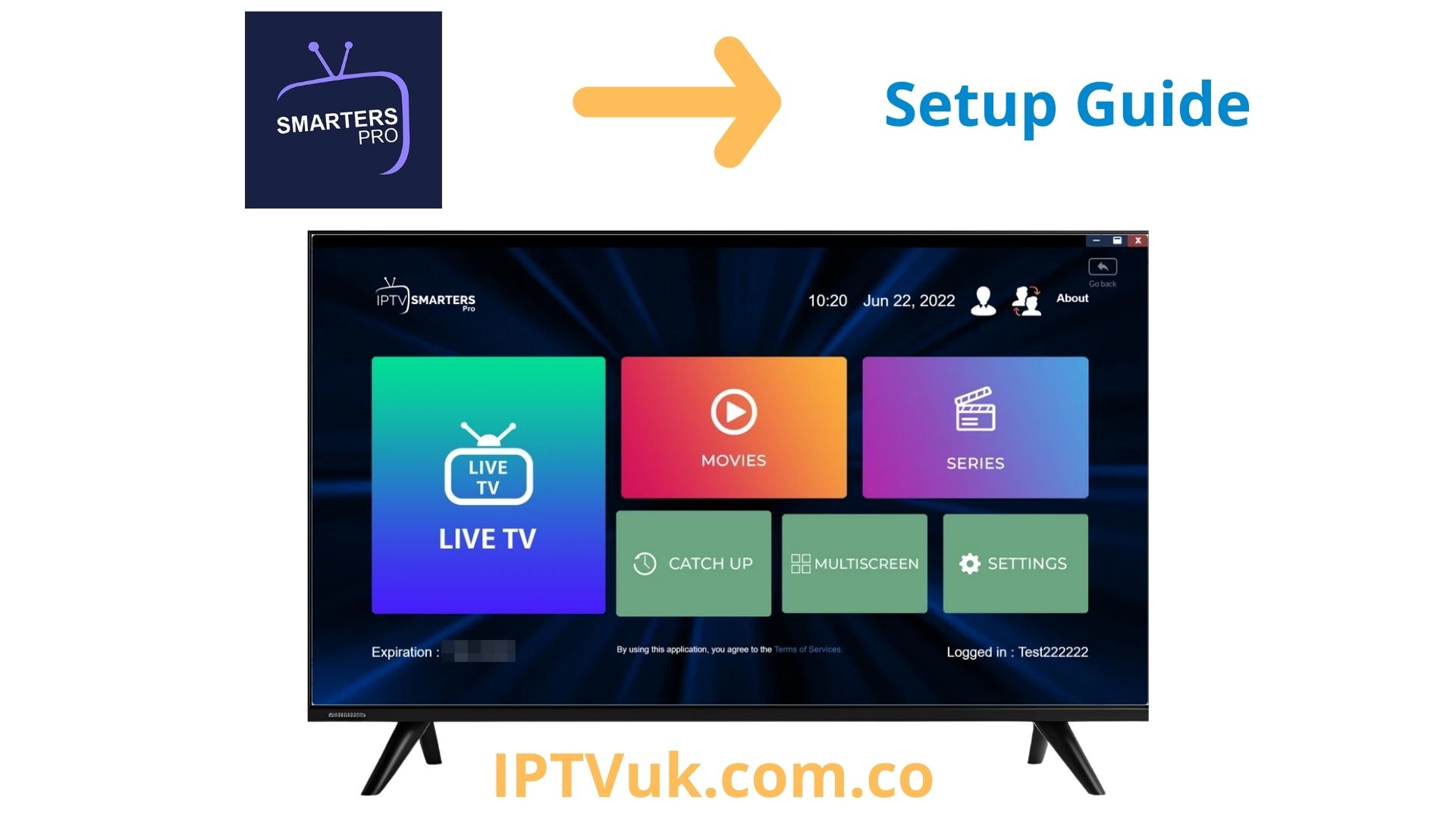
Main Menu Options:
- Live TV: Access all your live channels
- Movies: Browse VOD movie library
- Series: Watch TV series and shows
- Catch-Up: View past programs (if supported)
- Settings: Configure app preferences
Watching Live TV:
- Tap "Live TV" from main menu
- Browse channels by category or search
- Tap a channel to start streaming
- Use player controls to adjust volume, quality
Using EPG (TV Guide):
- Tap the EPG icon while watching
- View current and upcoming programs
- Tap a program to see details
- Set reminders for future shows
Configure IPTV Smarters Pro Settings
General Settings:
- Open Settings from main menu
- Select "General Settings"
- Choose your preferred language
- Set time zone for accurate EPG
- Enable/disable auto-play
Player Settings:
- Go to Settings Player Settings
- Choose default player (Internal or External)
- Set video quality preference
- Configure buffer size
- Enable/disable hardware acceleration
Parental Control:
- Go to Settings Parental Control
- Enable parental control
- Set a 4-digit PIN code
- Select categories to lock
- Save settings
EPG Settings:
- Go to Settings EPG Settings
- Enable EPG display
- Set EPG time format (12/24 hour)
- Choose EPG update frequency
Advanced Features
Adding Multiple Playlists:
- Go to Settings Manage Users
- Tap "Add New User"
- Enter credentials for second playlist
- Switch between playlists from main menu
Using External Players:
- Install VLC or MX Player
- Go to Settings Player Settings
- Select "External Player"
- Choose your preferred player
Chromecast Setup:
- Ensure Chromecast is on same WiFi network
- Play a channel in IPTV Smarters Pro
- Tap the Cast icon
- Select your Chromecast device
- Stream to your TV
Recording (if supported):
- While watching, tap the record button
- Recording starts immediately
- Access recordings from main menu
- Note: Recording depends on provider support
Troubleshooting Common Issues
Login Failed Error:
- Double-check username, password, and server URL
- Ensure no extra spaces in credentials
- Verify your subscription is active
- Contact your IPTV provider
Channels Not Loading:
- Check your internet connection
- Restart the app
- Clear app cache (Settings Apps Clear Cache)
- Reinstall the app if problem persists
Buffering Issues:
- Test your internet speed (need 10+ Mbps for HD)
- Increase buffer size in settings
- Switch to external player (VLC)
- Close other apps using bandwidth
- Use wired connection if possible
EPG Not Showing:
- Verify your provider offers EPG
- Check EPG settings are enabled
- Manually refresh EPG data
- Ensure correct time zone is set
App Crashing:
- Update to latest version
- Clear app cache and data
- Restart your device
- Reinstall the app
Tips for Best Experience
- Use Xtream Codes API instead of M3U for better features
- Enable hardware acceleration for smoother playback
- Organize channels into favorites for quick access
- Use external player (VLC) if experiencing playback issues
- Keep the app updated to latest version
- Use wired Ethernet connection for best streaming quality
- Set up parental controls if children use the device
IPTV Smarters Pro vs Other Players
Advantages:
- Available on all major platforms
- Free to use with no subscription
- User-friendly interface
- Regular updates and support
- Supports both Xtream Codes and M3U
Limitations:
- Occasional ads in free version
- Less customization than TiviMate
- Recording feature depends on provider
Conclusion
IPTV Smarters Pro is an excellent choice for users who need a reliable, cross-platform IPTV player. Its ease of use, wide device support, and comprehensive features make it perfect for both beginners and experienced IPTV users.
By following this guide, you should have IPTV Smarters Pro installed and configured on your device. Remember to always use the app with legitimate IPTV services that have proper content licensing.
Frequently Asked Questions
Is IPTV Smarters Pro free to use?
Yes, IPTV Smarters Pro is completely free to download and use. There are no subscription fees or hidden costs. However, you'll need an active IPTV subscription from a provider to access content through the app.
Can I use IPTV Smarters Pro on multiple devices?
Yes, you can install IPTV Smarters Pro on multiple devices and use the same IPTV credentials. However, the number of simultaneous streams depends on your IPTV provider's subscription plan (typically 1-5 connections).
Does IPTV Smarters Pro work on iOS devices?
Yes, IPTV Smarters Pro is available on the Apple App Store for iPhone, iPad, and Apple TV. The iOS version offers the same features as Android, including Xtream Codes support, EPG, and VOD libraries.
Why is my IPTV Smarters Pro buffering?
Buffering is usually caused by slow internet connection (need 10+ Mbps for HD), server issues from your IPTV provider, or incorrect player settings. Try increasing buffer size, switching to external player (VLC), or using a wired Ethernet connection.
How do I update IPTV Smarters Pro?
If installed from Google Play Store or Apple App Store, updates happen automatically. For APK installations on Android, visit the official IPTV Smarters website, download the latest APK, and install it over the existing version.
What's the difference between Xtream Codes and M3U?
Xtream Codes API is a more advanced protocol offering better organization, automatic EPG integration, VOD management, and catch-up TV. M3U is a simple playlist file format. Xtream Codes is recommended if your provider supports it.